10 signs your phone is hacked (Android and iPhone)
Hold your phone and count how many of these 10 signs you have. For each one this page explains why it happens, where to look on Android and on iPhone, and what to do. One sign alone is rarely proof, and having none is not proof that you are safe. The example in the video is imagined, not a real case.
How to use this page
- Go through the 10 signs one by one and count each one that fits you.
- Every sign has the same three parts: why it happens, where to check on Android and on iPhone, and what to do.
- Menu names can differ a little between phone makers and system versions. The paths below are the ones the official pages describe.
1. The battery drains fast
- A hidden program running in the background uses processor and network all day. It records, collects and uploads data, and that eats charge.
- Fast battery drain, constant overheating and growing mobile data traffic are the warning signs security researchers list for spyware on a phone (report (opens in a new tab)). They are not necessarily proof.
- An old battery or a heavy app can look the same, so use this as a first clue only.
- On Android: Settings, then Battery, then Battery usage. Look for an app you do not know, or one you do not remember using, taking a big share.
- On iPhone: Settings, then Battery. You see the usage of each app (Apple (opens in a new tab)).
What to do: Remove or restrict any app that uses a lot and that you do not recognise.
2. The phone is warm while it sleeps
- When the processor works, it makes heat. A phone that is warm in your pocket with the screen off has something running.
- Fast charging, games and sunshine also heat a phone, so only worry when it happens for no reason and keeps happening. Often heat and battery drain come together, because the cause is the same.
- On Android: Hold the phone while it is idle. If it is warm for no reason, open Battery usage and look at what is running.
- On iPhone: Do the same, then open Settings, then Battery and check which app was active in the background.
What to do: Note the time and the app. If the same unknown app shows up, go to sign 4.
3. Mobile data runs out early
- A program that steals data has to send it somewhere. That traffic goes through your data plan. The collected data is uploaded to a server that the attacker can read (source (opens in a new tab)).
- If your data finishes sooner than usual and your habits did not change, that is a sign.
- On Android: Settings, then Data usage. Look for an app with big usage that you do not use.
- On iPhone: Settings, then Cellular, then scroll to the list of apps (Apple (opens in a new tab)).
What to do: A bill that is higher than normal can be the first signal. Check the apps list as soon as you notice it.
4. Apps and settings you did not choose
- This is the most important sign, because you can see it. Google banned clear spyware apps from Google Play in 2020, so the attacker has to install from outside the store, which means turning on "unknown sources". That step leaves a trace in settings (report (opens in a new tab)).
- The app can also hide under a misleading name and ask for wide permissions on messages, calls and location. A permission is the right you give an app to reach something on the phone.
- Accessibility is a setting made to help people with disabilities: it lets an app read the screen and act on it. Android's own documentation says these services should only be used to help users with disabilities (docs (opens in a new tab)). A normal app that asks for it without a clear reason deserves suspicion.
- On Android: Check "Install unknown apps" and "Accessibility" in Settings. Remove the permission from any app that does not need it, and uninstall any app you do not remember installing.
- On iPhone: Settings, then General, then VPN & Device Management. If you find a profile you do not remember installing, delete it: its settings, apps and data are removed with it (Apple (opens in a new tab)).
What to do: Keep "unknown sources" off for every app that does not need it.
5. The camera or microphone indicator turns on
- When any app uses the camera or microphone, the phone must tell you. On Android 12 and newer an icon appears in the status bar (Android (opens in a new tab)).
- On iPhone a green dot means the camera is on, and an orange dot means only the microphone is on (Apple (opens in a new tab)).
- If the dot or icon shows up while you are idle and have nothing open, an app is using the camera or microphone right now.
- Android 12 and newer also has a screen that shows which app used the camera, microphone and location in the last 24 hours.
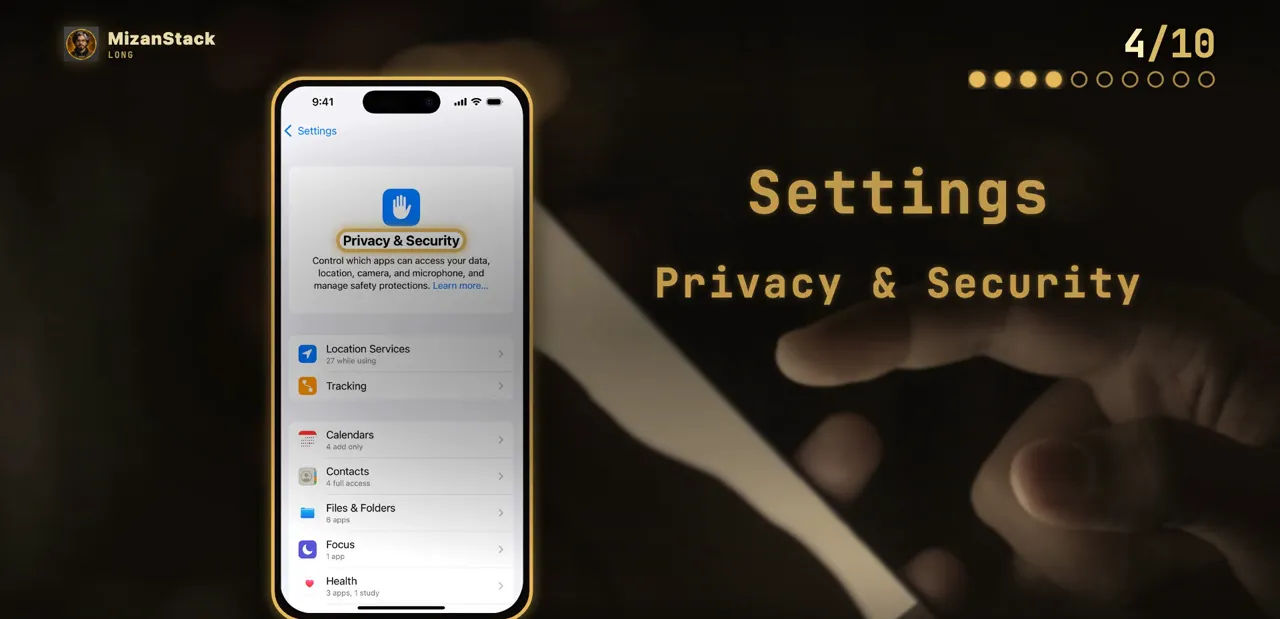
- On Android: Open the permission usage screen (the privacy dashboard in Settings) and see which app used the microphone, camera or location.
- On iPhone: Settings, then Privacy & Security. Check which apps have camera, microphone or location permission, and open App Privacy Report (Apple (opens in a new tab)).
What to do: If an app used the microphone for no reason, pull its permission right away.
6. Messages you did not write
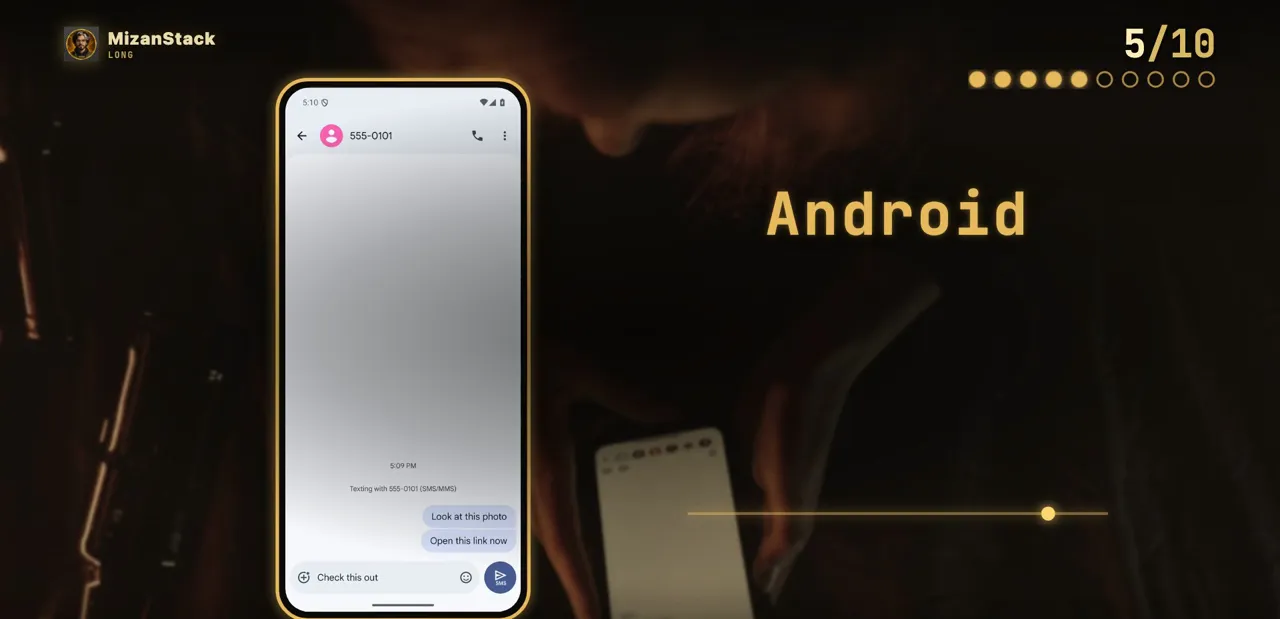
- Some malware of this kind can send SMS from your number with text it gets from its server, and it spreads from phones that are already infected (report (opens in a new tab)).
- Your friends and family then get a message from your number with the same bait and open it because it is from you. That is why friends suddenly ask "what did you send me?".
- On Android: Open Messages and review the sent messages.
- On iPhone: Open Messages and look at the conversations that went out from you. If one is not yours, start checking.
What to do: Tell the people who received it not to open the link, and run a Play Protect scan (sign 10).
7. "No service" for no reason (SIM swap)
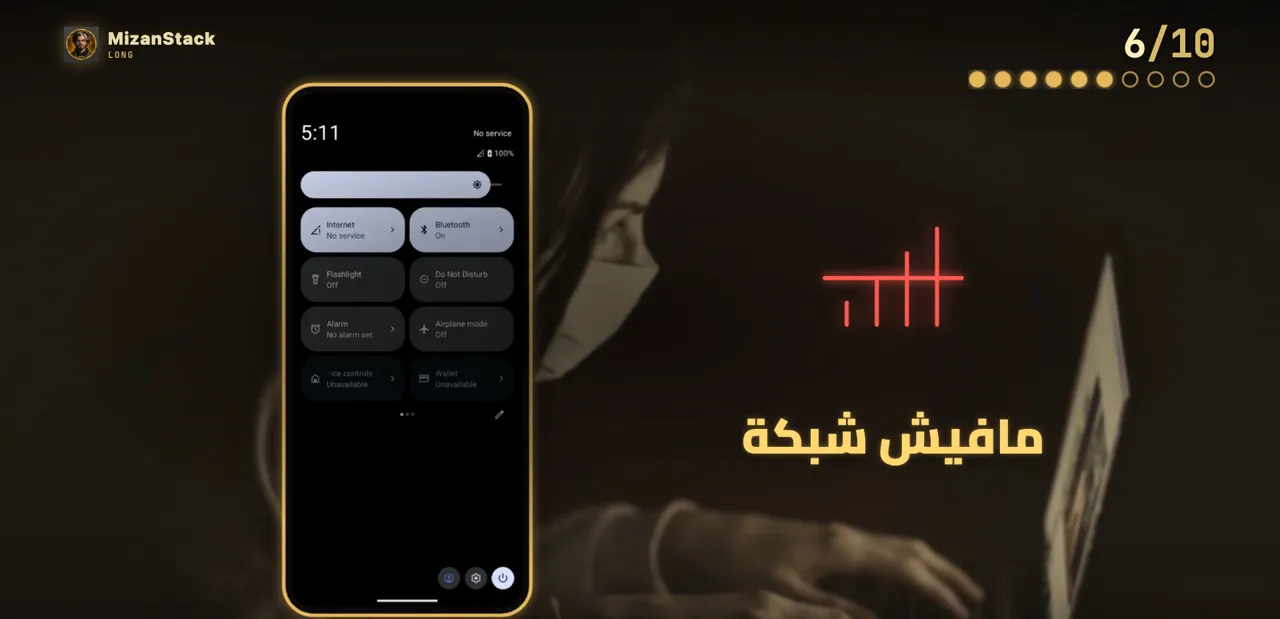
- This sign has nothing to do with an app. In a SIM swap the attacker convinces the mobile company, or someone working there, to move your number to a SIM they hold. From then on calls and texts go to them and your phone shows "No service".
- The methods include tricking the company, bribing an employee, or phishing. The result is that login codes sent by SMS reach the attacker (official cybercrime alert (opens in a new tab)).
- On Android: Look at the top bar. If it says "No service" and you did not change anything, treat it as serious.
- On iPhone: If the top bar says "No Service" for no reason, call the company from another number.
What to do: Call your mobile company from another number right away. Never give your account details to someone who calls you: hang up and call the official number yourself.
8. Login codes or alerts you did not ask for
- Once an attacker holds your number, the first thing they do is press "forgot password". The confirmation code goes to their phone, not yours. That code is an OTP: a password you use once.
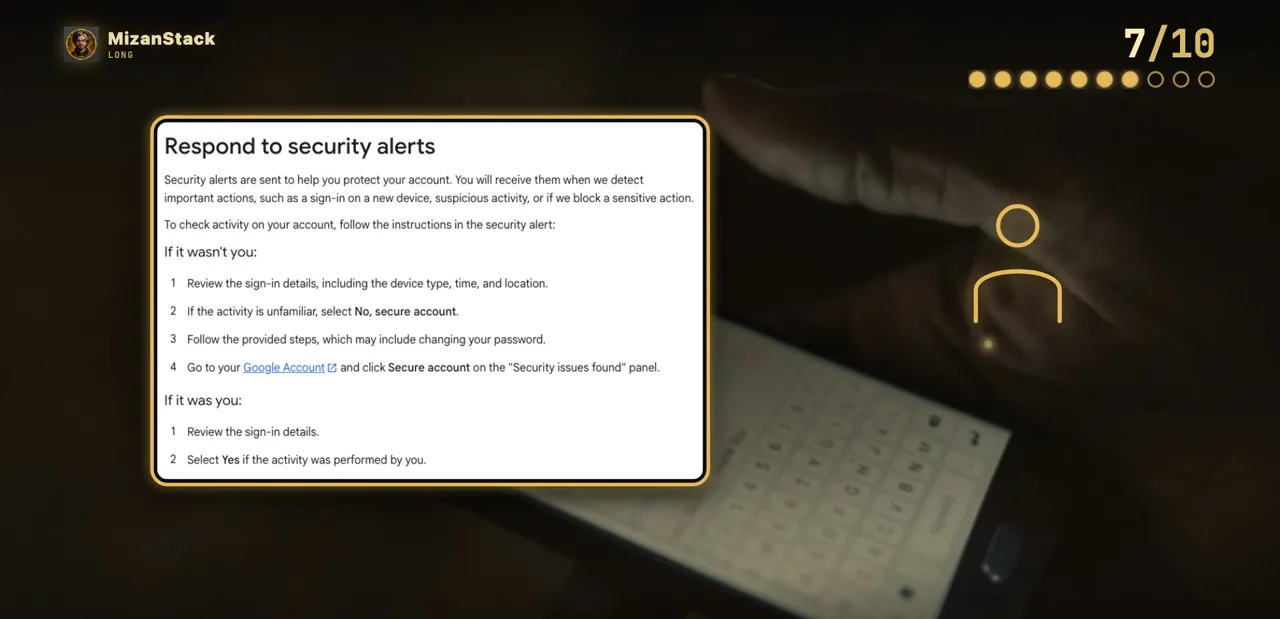
- Before that you may get a code you never asked for, or an alert that someone signed in from a new device. It means someone is trying, or already succeeded.
- On Android: Open your Google account, then Security, then "Recent security events". Choose "No, it wasn't me" on anything strange, then change the password (Google (opens in a new tab)).
- On iPhone: Settings, tap your name, review the registered devices, then Sign-In & Security. Remove any device that is not yours (Apple (opens in a new tab)).
What to do: Change the password and turn on two-step verification with an authenticator app.
9. A message that rushes you to tap a link
- Many ordinary infections start with a message that tries to rush you: a parcel, a voicemail, a video that says "is this you?". The wording changes all the time, and the targeted regions sometimes change every few days (report (opens in a new tab)).
- So do not look for the shape of the message. Look for the feeling: someone is pushing you to tap.
- On Android: A message that rushes you or asks for your data is phishing. Do not tap the link.
- On iPhone: Same rule on iPhone (Apple: recognise phishing messages (opens in a new tab)).
What to do: Do not tap. If the sender is real, open their app yourself or call their official number.
10. A warning from the system itself
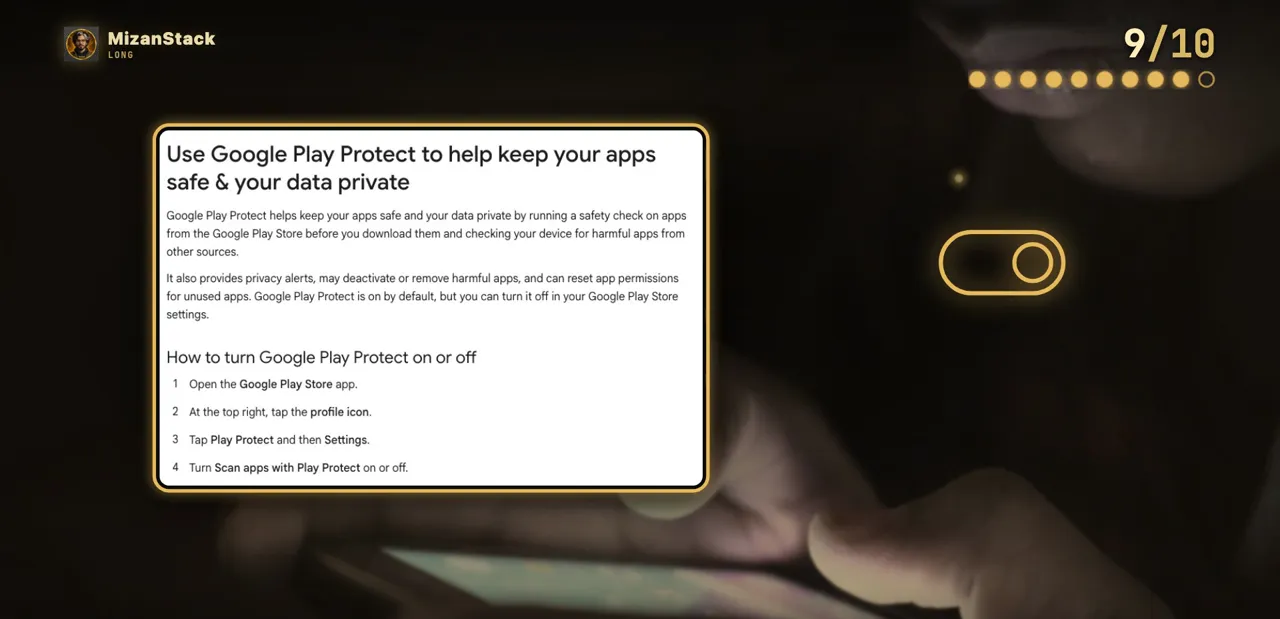
- Google Play Protect checks apps and devices, including apps that come from outside the Play Store. It warns you about harmful apps and can turn them off or remove them (Google (opens in a new tab)). If a warning appears, do not ignore it.
- On Android: Open App security in settings and keep scanning on. If it finds a harmful app, remove it and change your passwords.
- On iPhone: Settings, then Privacy & Security, then Safety Check. Review who you share information with (Apple (opens in a new tab)).
What to do: If you suspect someone close to you installed spying software, do not rush to delete it: they may notice. Think about a safety plan first and talk to a specialised help organisation.
What your number means
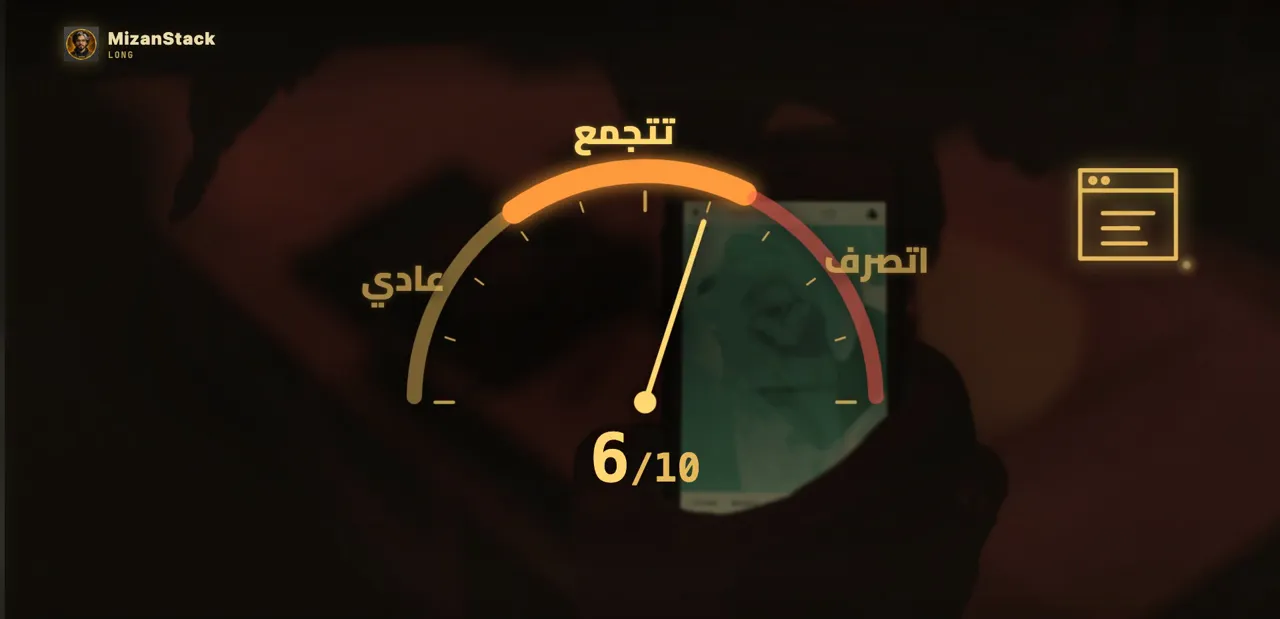
- One sign by itself usually has an ordinary explanation: an old battery or a heavy game.
- When several signs add up, especially an unknown app or messages you did not write, do not wait. Start acting now.
- The signs are not proof, and not having them is not proof that your phone is clean.
There is also an honest limit. Some very advanced attacks target a very small number of people and leave none of these signs. Apple describes them as far more sophisticated than regular cybercriminal activity (Apple (opens in a new tab)). If you are an ordinary user, the chance of meeting that kind is small, and the chance of meeting a scam message or a bad app is much higher. The 10 signs are made for that second kind.
What to do today
The real defence is habits, not watching symptoms. Do this once:
- Turn on automatic updates and install updates as soon as they come. Apple itself says to update to the latest version before turning on Lockdown Mode, so protection is complete.
- Turn on two-step verification and prefer an authenticator app, because SMS is exactly what goes to the attacker in a SIM swap.
- Watch for any change in your network connection, and never give your mobile account details to someone who calls you.
- Review permissions: who has the camera, microphone and location.
- Turn off "Install unknown apps" for every app that does not need it.
- Keep Play Protect on.
- Never tap a link from someone you are not sure about.
iPhone also has Lockdown Mode: extreme protection for a very small number of people, such as those whose work makes them a target. It blocks many message attachment types and features. Most people are never targeted at this level, so it is not for everyone (Apple (opens in a new tab)).
Sources
- Security research: the state of stalkerware in 2020 (securelist.com (opens in a new tab))
- Security research: global malware campaigns with parcel and voicemail lures (bitdefender.com (opens in a new tab))
- Security blog: how stalkerware works (kaspersky.com (opens in a new tab))
- Android developers: Android 12 camera and microphone indicator (developer.android.com (opens in a new tab))
- Android developers: AccessibilityService (developer.android.com (opens in a new tab))
- Official cybercrime alert on SIM swap, 8 February 2022 (ic3.gov (opens in a new tab))
- Google Account Help: secure a hacked account (support.google.com (opens in a new tab))
- Google Play Protect help (support.google.com (opens in a new tab))
- Apple: camera and microphone indicators (support.apple.com (opens in a new tab))
- Apple: check battery usage (support.apple.com (opens in a new tab))
- Apple: cellular data settings (support.apple.com (opens in a new tab))
- Apple: configuration profiles (support.apple.com (opens in a new tab))
- Apple: control access to information in apps (support.apple.com (opens in a new tab))
- Apple: keep your Apple Account secure (support.apple.com (opens in a new tab))
- Apple: recognise phishing messages (support.apple.com (opens in a new tab))
- Apple: Safety Check (support.apple.com (opens in a new tab))
- Apple: Lockdown Mode (support.apple.com (opens in a new tab))
- Apple: advanced attacks (support.apple.com (opens in a new tab))
Sources opened and checked on 9 November 2026. Menu names change between versions, so check the links. The signs are clues, not proof.